Create an attribute
- Go to Settings, then Attributes, and press Create attribute.
- Choose the Attribute type: Text, Number, Date, Select or Checkbox.
- Give it a name. For a Select, add the options people can have.
- Press Create attribute.
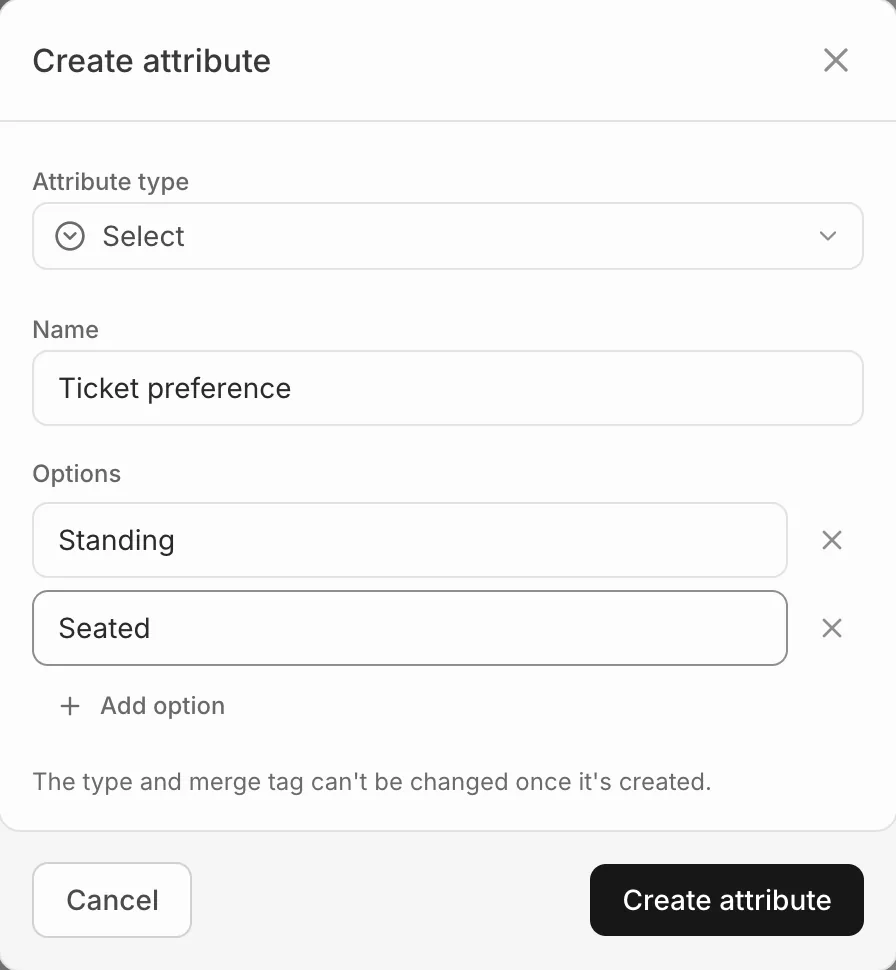
An attribute’s type and merge tag can’t be changed once it’s created. Only owners and admins can create, edit or delete attributes.
The attributes page
Your attributes lists the ones your organisation made, each with its merge tag. System attributes lists what every profile already holds from your box offices, such as email, location and lifetime spend.
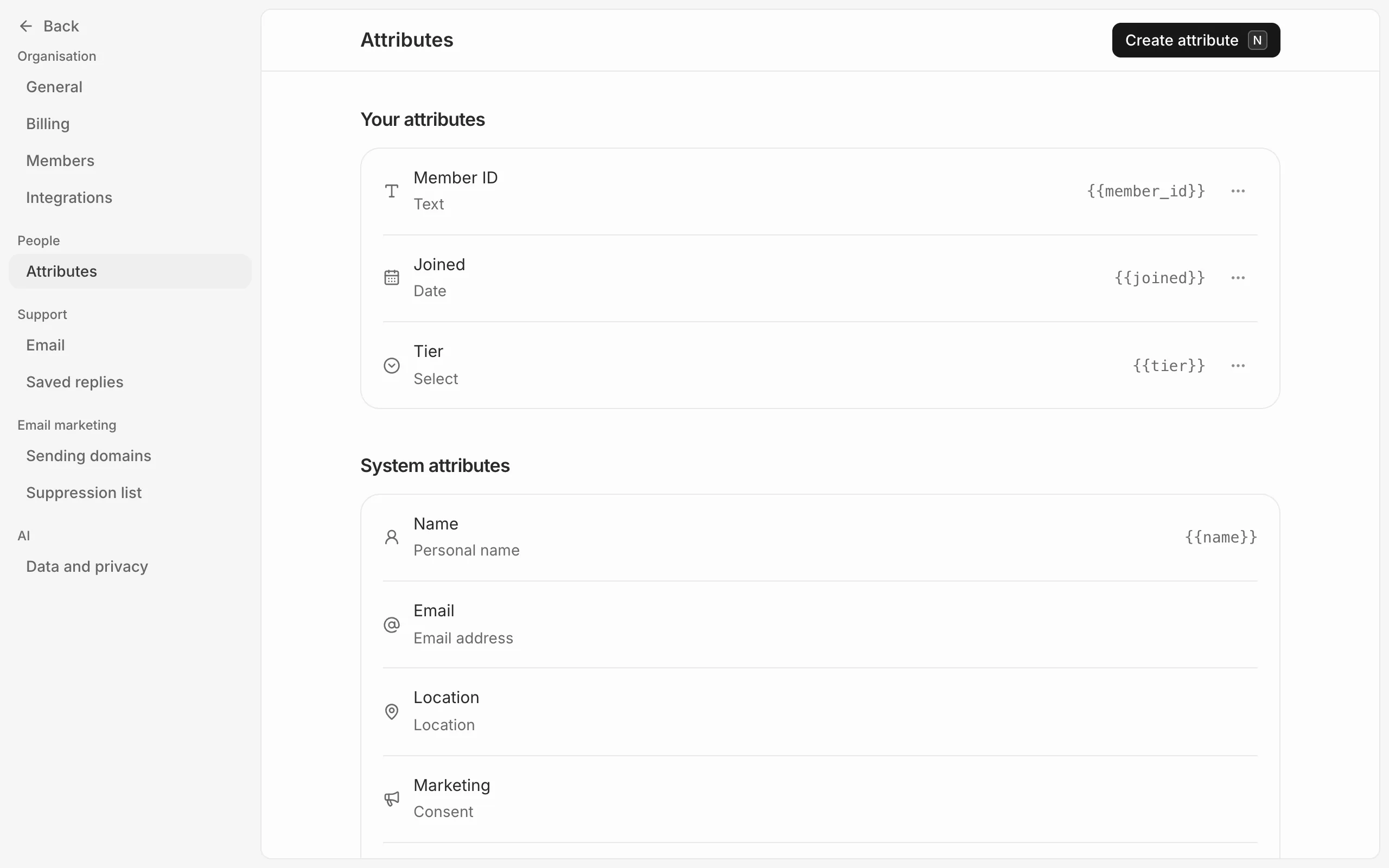
Use the … button beside one of yours to rename it, change a select’s options, or delete it.
Deleting an attribute removes everyone’s values. Segments that filter on it will match no one, and campaigns that use its merge tag can’t be sent until it’s taken out.
Use it
Fill it in on any profile, filter segments by it, and put it into emails with its merge tag (see Personalise an email).