Add filters
- In People, press Add filter (the plus button).
- Choose what to filter on, then set its value.
- Add more filters to narrow it down. People have to match every filter to be in the list.
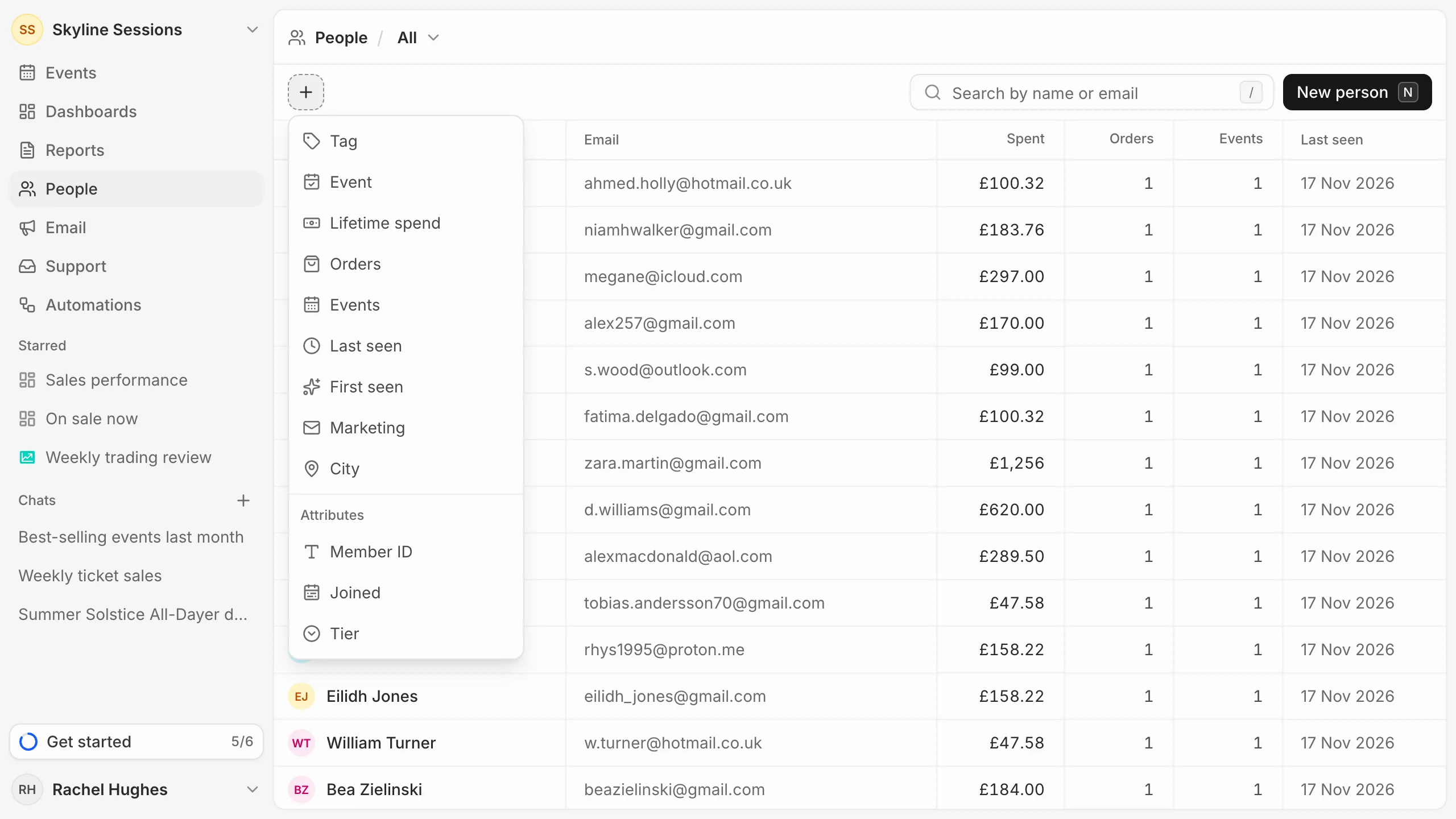
What you can filter on
- Event: bought tickets for an event, hasn’t bought tickets for it, or came to it. Picking an event that runs on several dates covers every date.
- Lifetime spend, Orders and Events: at least or at most a number.
- Last seen and First seen: in the last so many days, or more than so many days ago.
- Marketing: agreed, declined or wasn’t asked.
- City and Tag.
- Any of your own attributes.
Save it
Press Save segment and give it a name. It then appears in the menu beside People, and in the To field when you write an email.
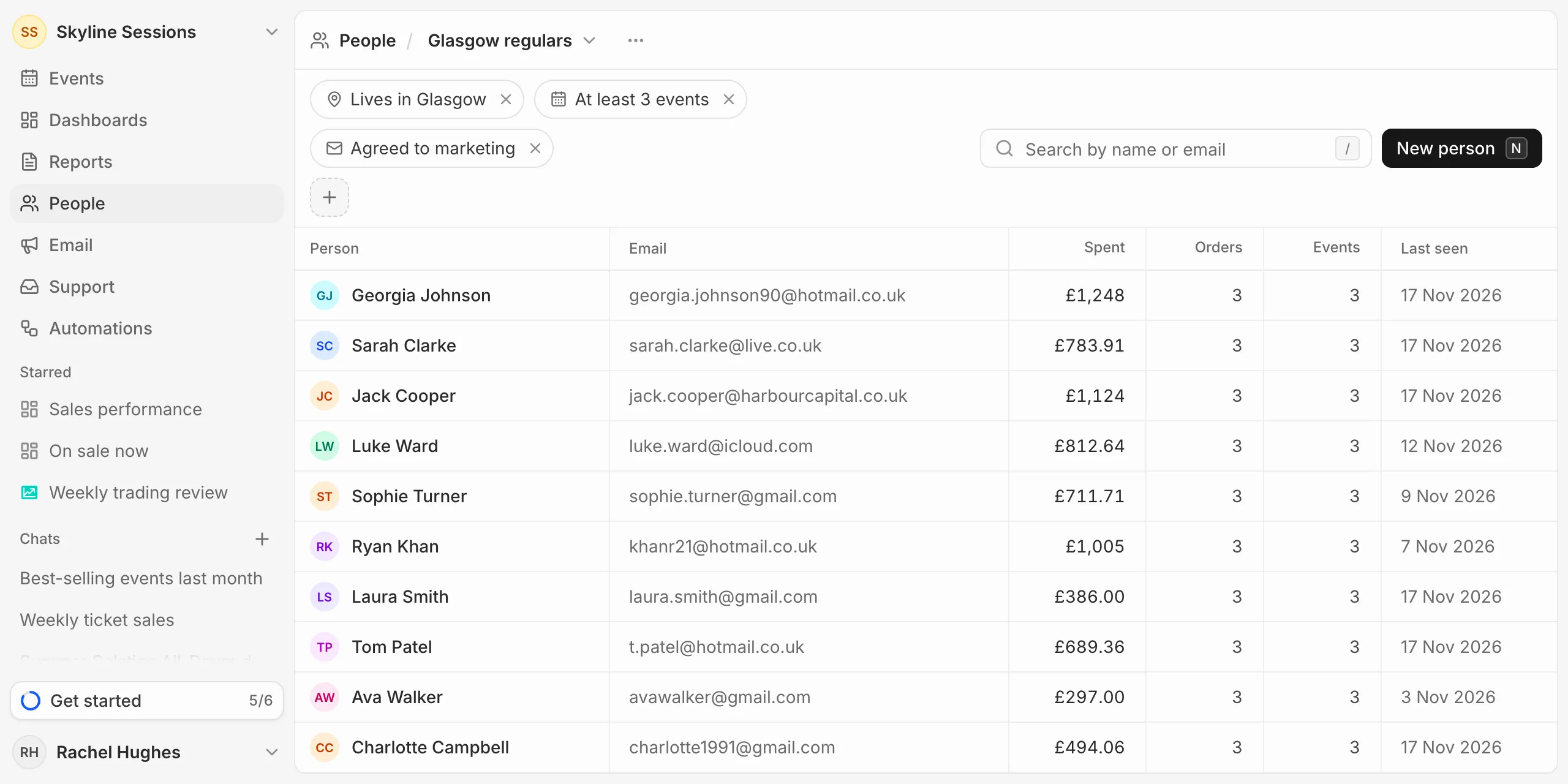
A segment is worked out each time it’s used, so people join and leave it as they buy. It’s always current when you send to it.
A segment can have up to 10 filters.
Change a segment
Open the segment and change its filters. Then press Save segment and choose Update with its name, or Save as new segment to keep both. Reset puts the filters back as they were.
To rename or delete it, use the … button beside its name. Deleting a segment doesn’t affect the people in it, but campaigns that were going to it will need a new audience.