Insert a field
Anywhere a step takes text, such as a Slack message, press Insert field and pick a detail. It goes in as a field in double braces, like {{event.name}}, and is filled in with that run’s value.
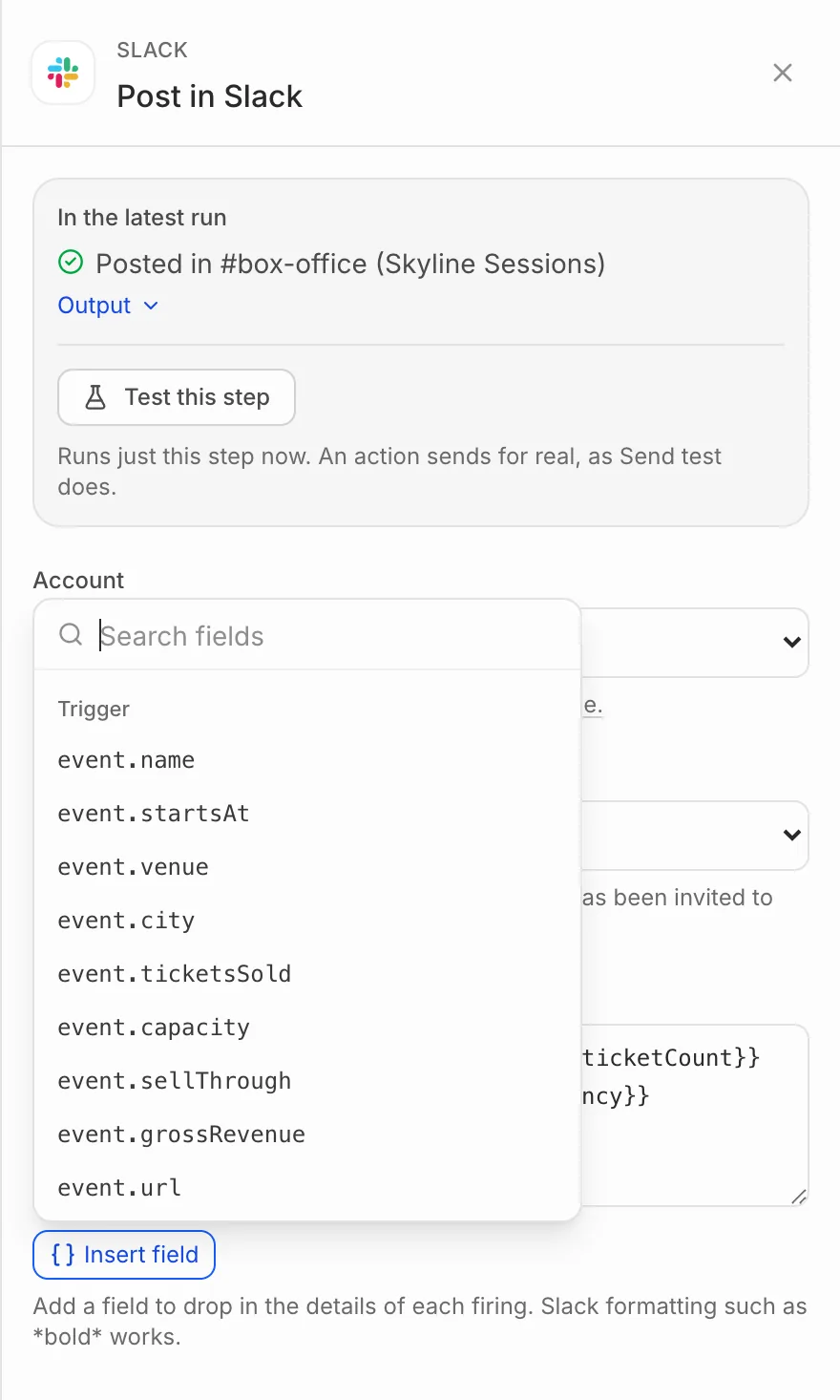
The fields on offer depend on the trigger: an order trigger has the event, the order and the buyer; a scheduled one has none of them. Steps before this one add their own results, so a step after an HTTP request can use its answer.
Who a step acts on
A step that adds someone to a list or a CRM starts with a Person section: their Email, First name, Last name and City. They start as the buyer, or the ticket’s attendee when that’s someone else. Change any of them to another field if you need to. If the email comes out empty or isn’t an email address, the run stops at that step.
Steps that need a buyer
Steps about a person need an order to work from, so they only work with New order, Ticket issued and Order refunded. With any other trigger, the step picker marks them Doesn’t work with this trigger.