Connect it
- Go to Settings, then Integrations, and press Connect on the app.
- Press Authorise. A window opens where you sign in to the app and allow access. Some apps ask for an API key instead, with a note on where to find it in that app.
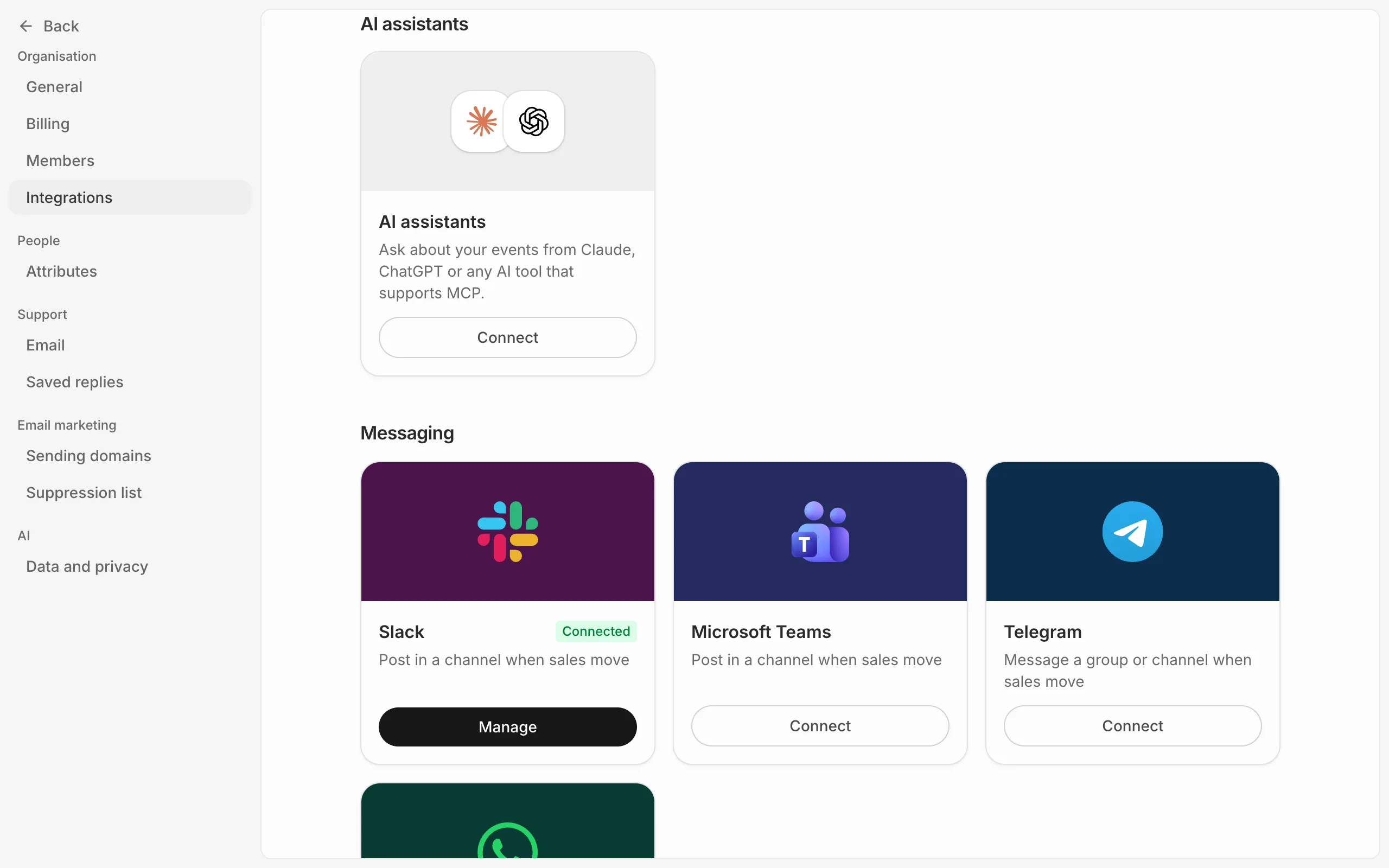
Use it in a step
A step for the app picks the connected account by itself, or lets you choose under Account if you’ve connected more than one. If none is connected yet, the step offers Go to Integrations. Save your automation first, as that page opens in the same tab.
Manage accounts
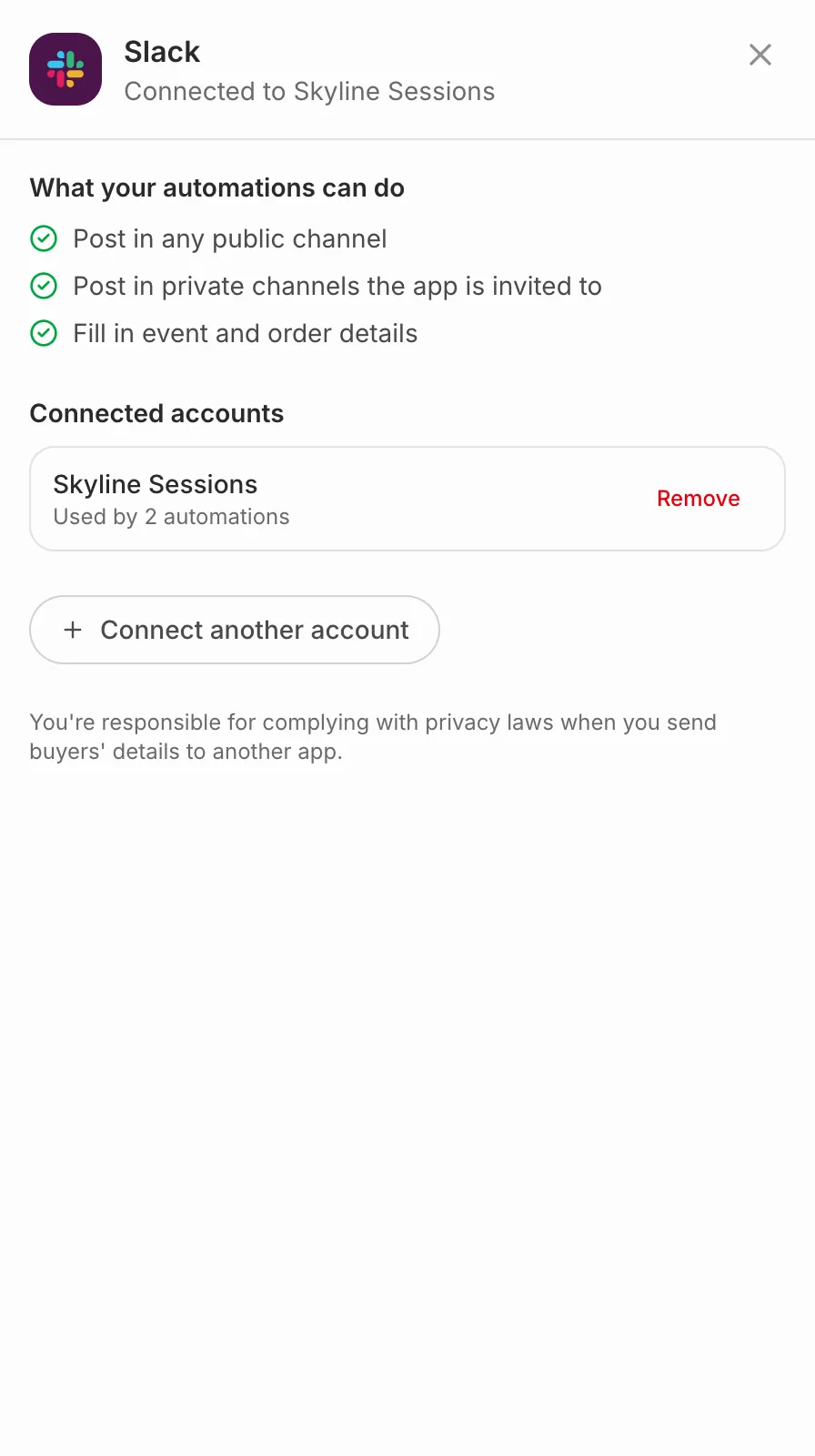
Press Manage on a connected app to see its accounts and how many automations use each. Remove disconnects one: automations using it fail until you pick another account in them. Connect another account adds a second workspace or login.
An app marked Needs reconnecting has stopped accepting the connection, for example because access was removed in the app. Automations using it fail until you connect it again from the same place.
Which apps
Messaging apps, email marketing tools, CRMs, spreadsheets and online event tools. See the integrations page for the full list and what each can do.