The runs view
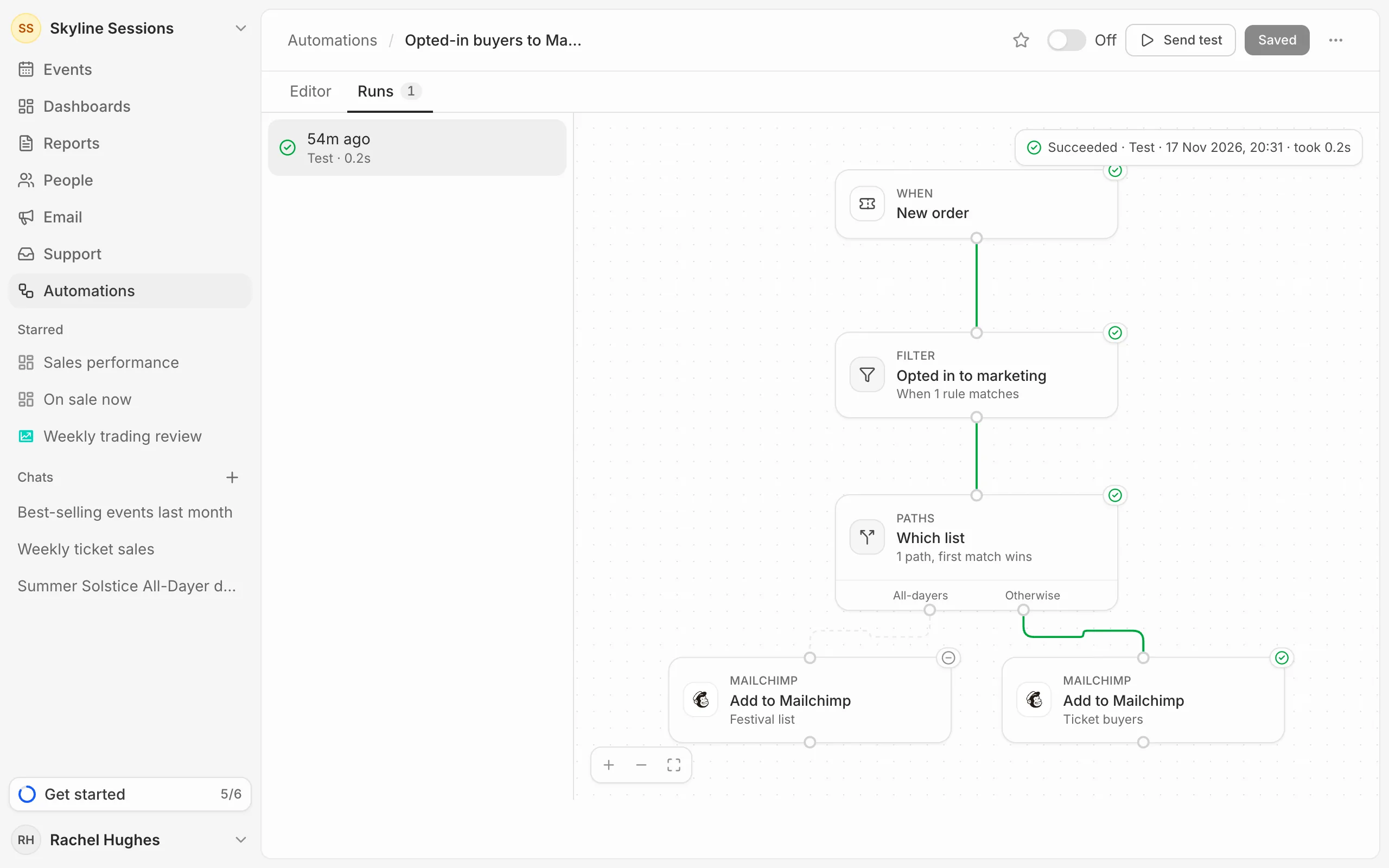
Open the automation and switch from Editor to Runs. Its latest 20 runs are listed with when they started, whether each was a Test or Live, and how it went. Pick one to see the route it took, then click a step for what it did and what came back. Click the trigger for the data the run started with.
Statuses
- Succeeded: every step it reached worked. A filter that stopped it counts as succeeded.
- Failed: a step failed, so nothing after it ran. The step’s error says why, such as an app that needs reconnecting. A red dot on Runs means the latest run failed.
- Waiting: held by a delay. Press Cancel run to stop it.
- Running and Cancelled.
Retries
When an app is busy or down, the step is tried again by itself a few times before the run fails. The step shows how many attempts it took.
Plan limits
Each plan includes a number of automation runs a calendar month, and some plans also limit how many automations can be switched on at once. Drafts, automations that are off, and test runs never count. See your usage under Settings, then Billing, and each plan’s allowances on the pricing page.
Once a month’s runs are used up, automations stop running until the next month, and what happens in between isn’t caught up afterwards.