Build it
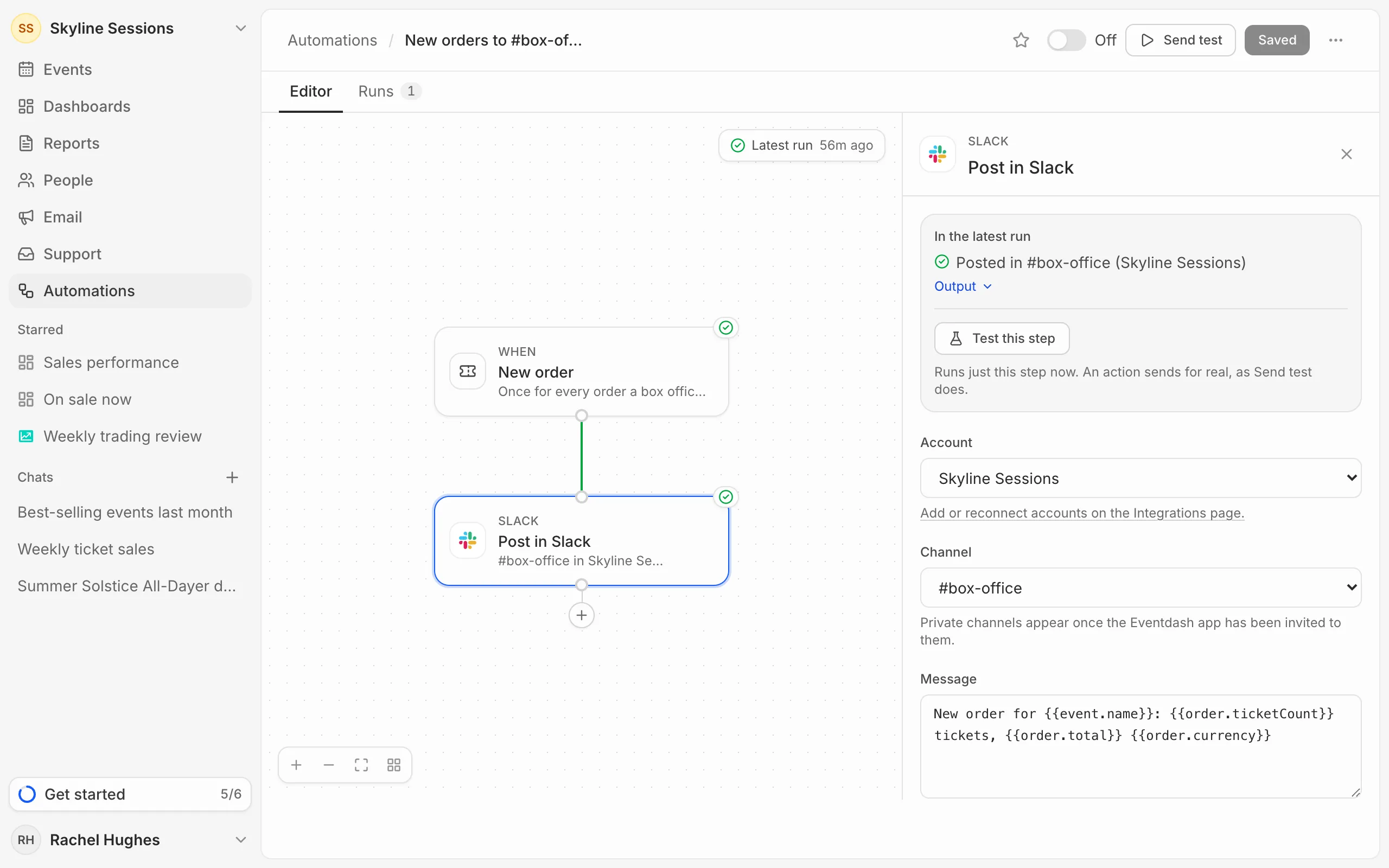
- Open Automations and press New automation. Click its name at the top to rename it.
- In the panel on the right, choose the Trigger: what starts it, such as a new order. See Triggers.
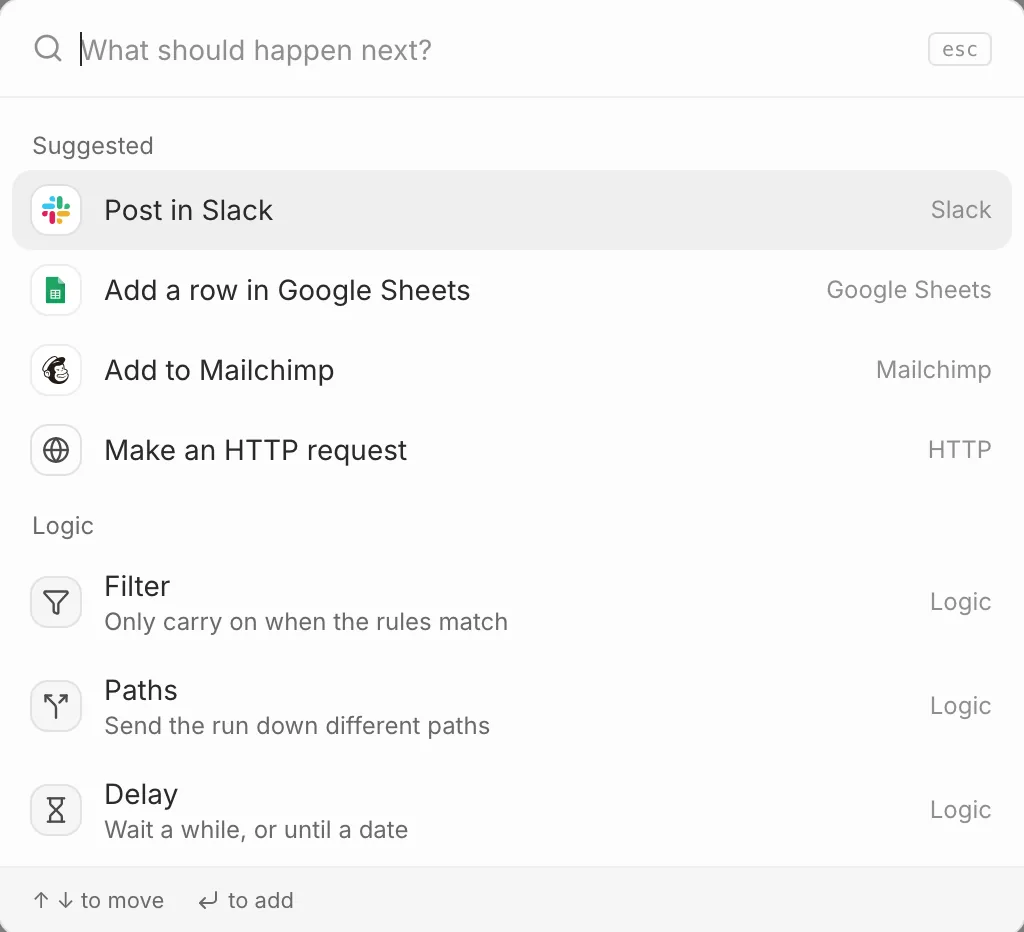
- Press + under the trigger and pick what happens next, such as Post in Slack. Add more steps under it the same way.
- Click a step to fill in its settings. A step that still needs something says so on its card, such as Pick a channel or Connect an account.
- Press Save, or ⌘ S, once no step is missing anything.
Arrange the steps
- Drag from the dot under one step to the dot on top of another to connect them, or let go on empty canvas to add a new step there. Several steps can follow one step, and they all run.
- Hover over a line and press + to add a step in between, or × to remove the connection.
- A step with no line to it from the trigger is marked Not connected, so it never runs. It stays there as a draft.
- Tidy up, in the corner of the canvas, lines everything up again.
Switch it on
Test it first (see Test an automation), then turn on the switch beside Off at the top. It runs every time its trigger happens from then on, not for anything that happened before.
The switch runs what you last saved. Press Save after a change, or the automation carries on running the old version.
Turning it off stops it straight away, including runs waiting in a delay. To get rid of it, open the ⋯ menu and pick Delete automation; its run history goes too.
The list
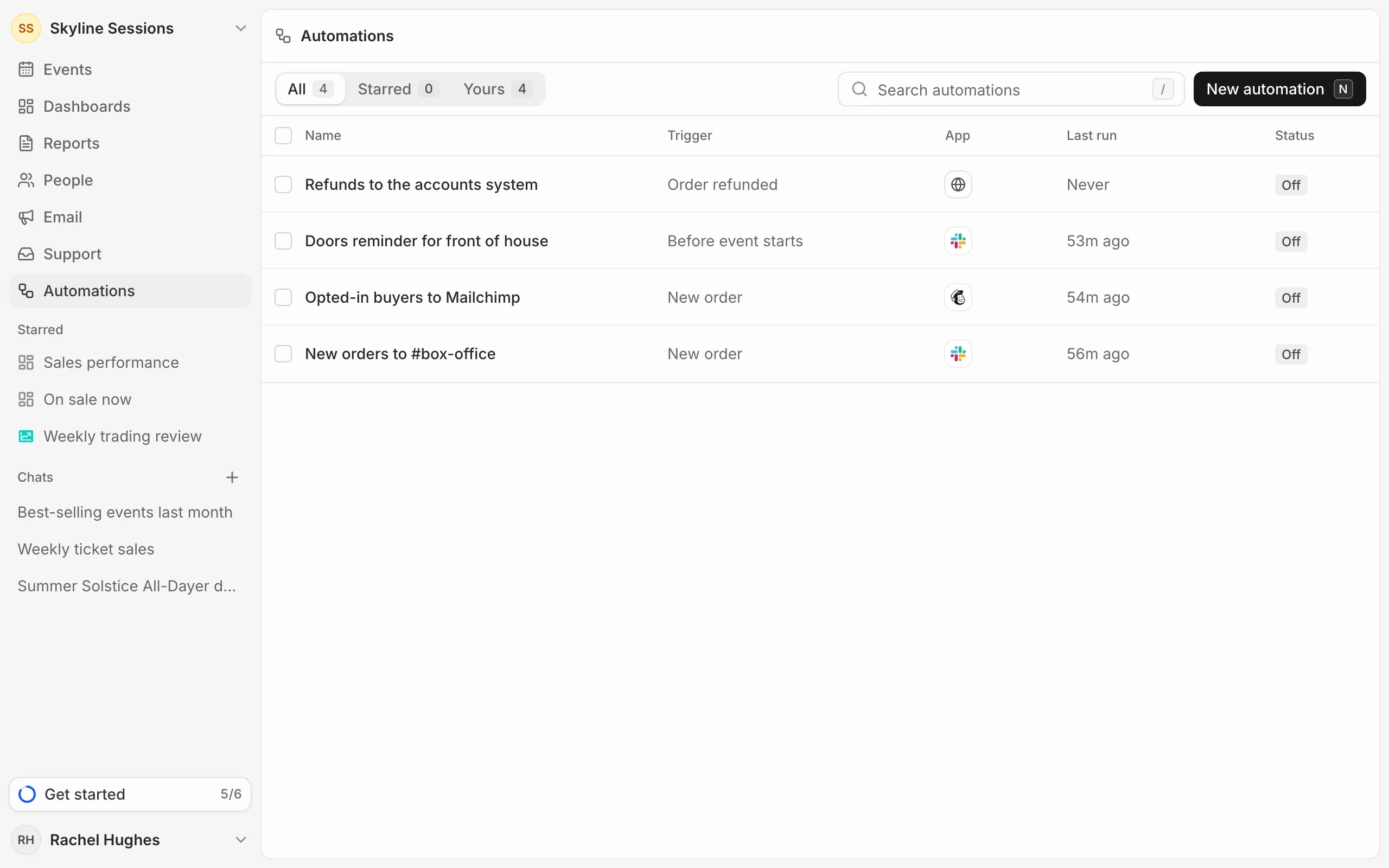
Automations lists each automation’s trigger, the app it sends to, its last run and whether it’s On or Off. Tick several to Disable or delete them together.
Everyone in your organisation can see automations. Only owners and admins can create or change them.