Templates
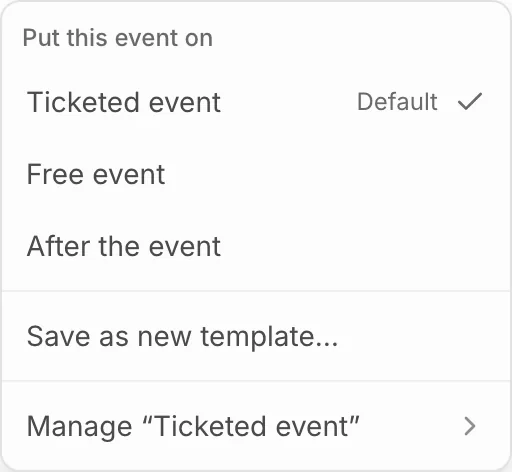
Every event’s page follows a template. Your organisation starts with three: Ticketed event, the default; Free event, which leaves out revenue and adds check-in rate; and After the event, with check-ins, no-shows, refunds and door arrivals.
To put an event on another template, press the template’s name next to the period button and pick one under Put this event on.
Change the cards
Press Add metric to add a card, from the library or one you build (see Build your own metric). Drag a card to move it and drag its corner to resize it. Its menu has Filters, to narrow what it counts, and Remove.
Changes save as you make them, and the template’s name then says Customised. Only this event changes until you choose Save changes to Ticketed event (or whichever template it follows), which updates every event on that template. Discard changes puts this event back to the template.
Make a template
- Lay out an event’s page the way you want it.
- Open the template menu and choose Save as new template…
- Name it. Tick Use for every event without a template of its own to make it the default.
To rename, delete or make the current template the default, open Manage “Ticketed event” (named for the current template) at the bottom of the menu.