Tag one event
Open the event and press the tag icon at the top right. Tick a tag, or type a new name and press Enter to create it. Click a ticked tag again to take it off.
Tag several at once
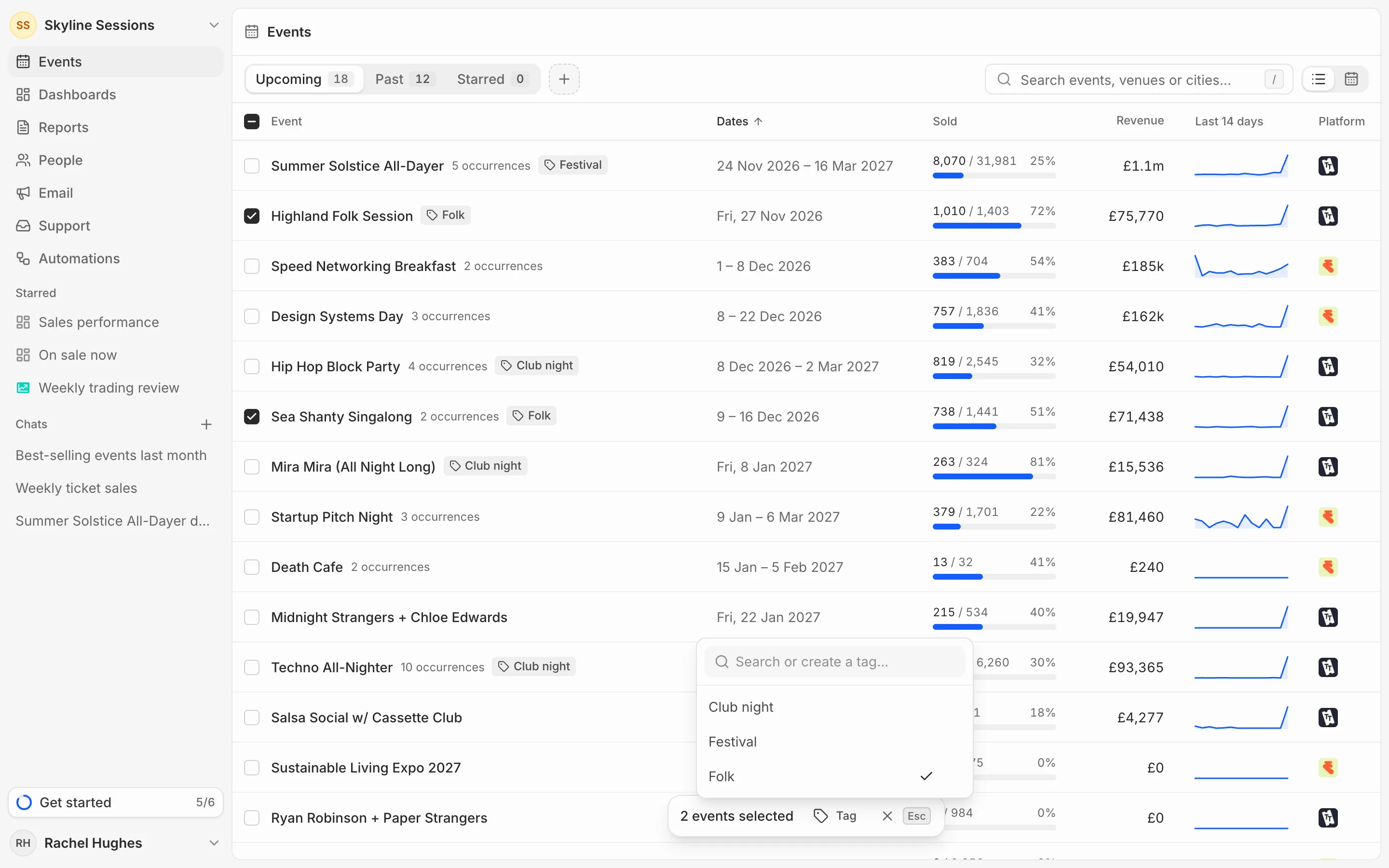
- In the events list, tick the events you want.
- Press Tag in the bar at the bottom of the screen.
- Tick a tag to add it to all of them, or untick it to take it off all of them.
A tag only some of them carry is marked On some.
How tags work
Tags are shared with your organisation. A tag on an event with several dates applies to every date; on a single date it shows as From series. Capitals don’t make a new tag: “VIP” and “vip” are the same one, spelt the way it was first typed.
Use tags to filter the events list, and to filter dashboards and reports.
Delete a tag
Press the bin beside a tag in the tag menu to delete it. It comes off every event that has it, and dashboards and reports that filter by it stop matching them.