The list
Helpdesk lists conversations with the newest activity first, and opens the top one beside the list. A blue dot marks a conversation with something nobody on your team has read yet. Opening it clears the dot for everyone.
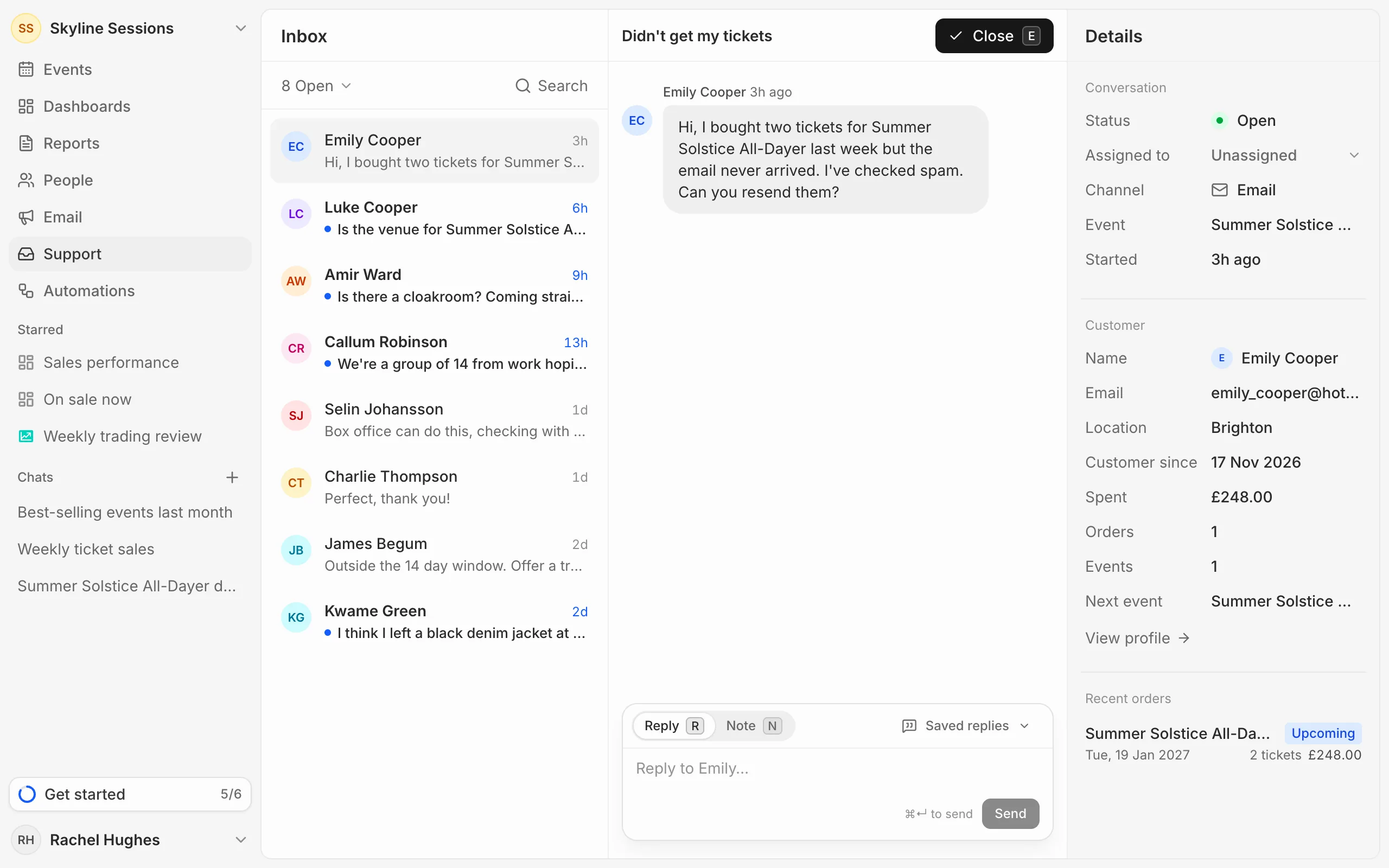
Switch between views
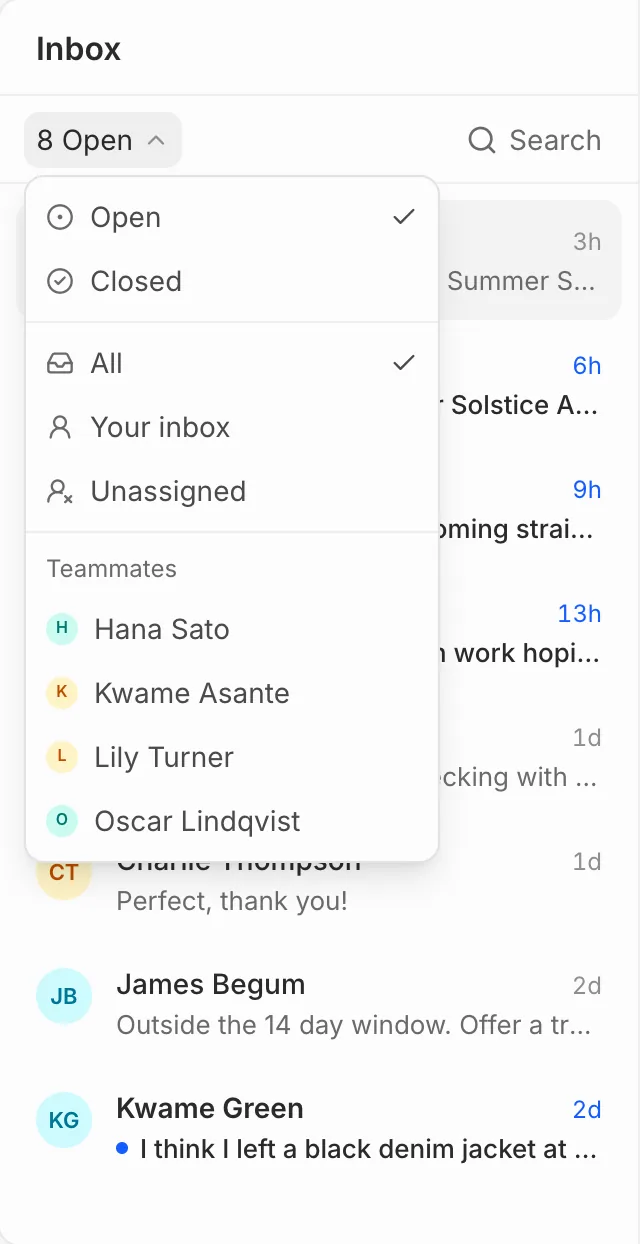
The menu under Inbox shows how many conversations are in the list. Open it to switch between Open and Closed, and to narrow the list:
- All: every conversation.
- Your inbox: the ones assigned to you.
- Unassigned: the ones nobody has picked up.
- A teammate’s name: the ones assigned to them.
Search
Press Search, or /, to find a conversation by its subject or the sender’s name or email address.
Keyboard shortcuts
- R to write a reply, N to write a note.
- ⌘ ↵ (Ctrl ↵ on Windows) to send.
- E to close the conversation, or reopen a closed one.