The sidebar
Everything in Eventdash is a click away in the sidebar on the left.
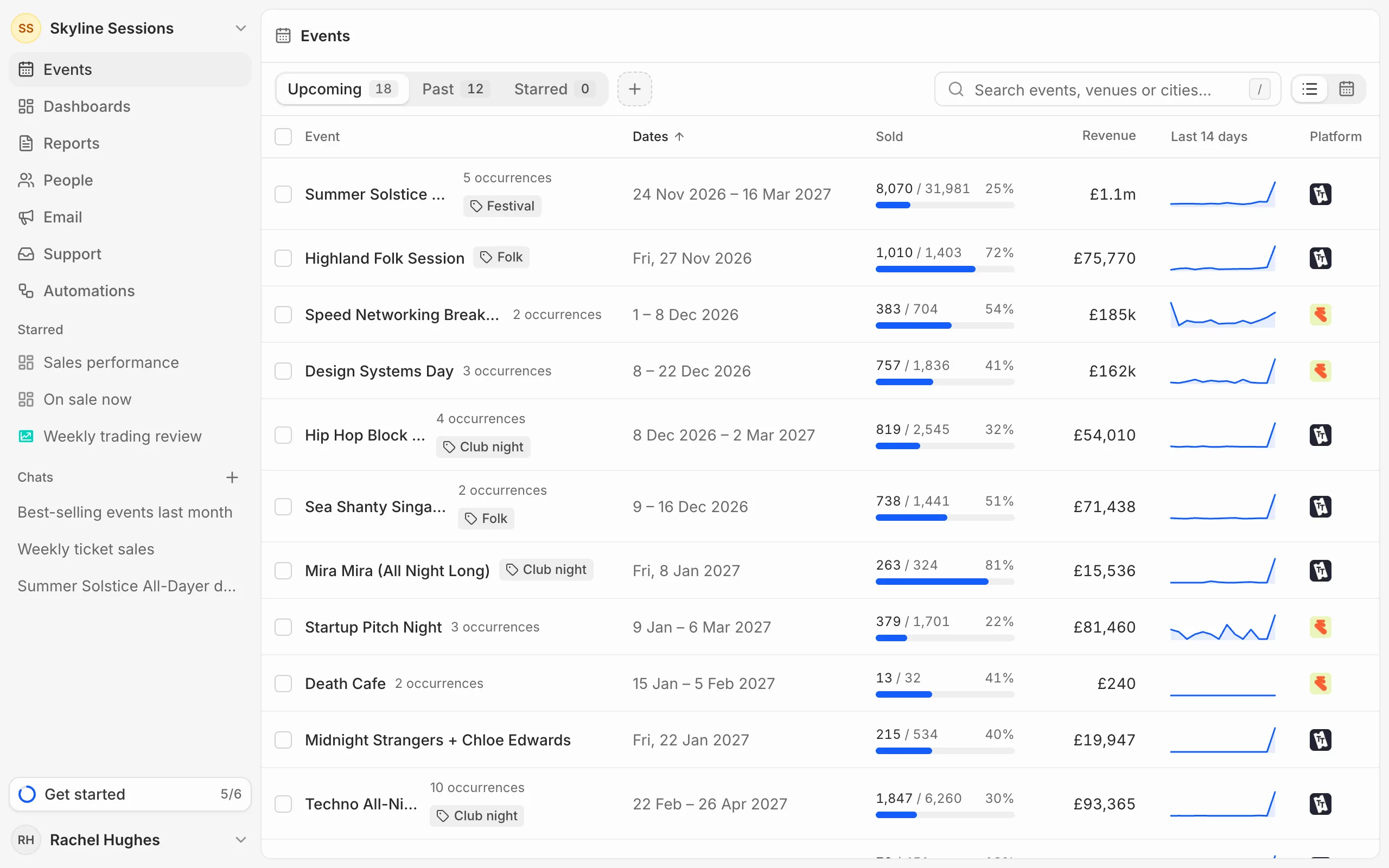
- At the top, the organisation menu: your organisation’s Settings, your other organisations and New organisation.
- The main sections: Events, Dashboards, Reports, People, Email, Helpdesk and Automations.
- Starred: the pages you’ve starred.
- Chats: your conversations with the AI assistant. Press + beside the heading to start a new one.
- At the bottom, your name: open it for your Account page or to Sign out.
Star what you use most
Press the star beside the title of a dashboard, report, event, chat or automation to add it to Starred. Stars are yours alone: your teammates keep their own. The Events, Dashboards, Reports and Automations lists also have a Starred tab.
Fold the sidebar
Press ⌘B (Ctrl+B on Windows) to fold the sidebar down to its icons and give the page more room. Rest the pointer on the folded sidebar to open it over the page, and press the pin, or ⌘B again, to keep it open.
On a phone
The sidebar sits behind the menu button at the top left. Search is the magnifying glass at the top right.