Start one
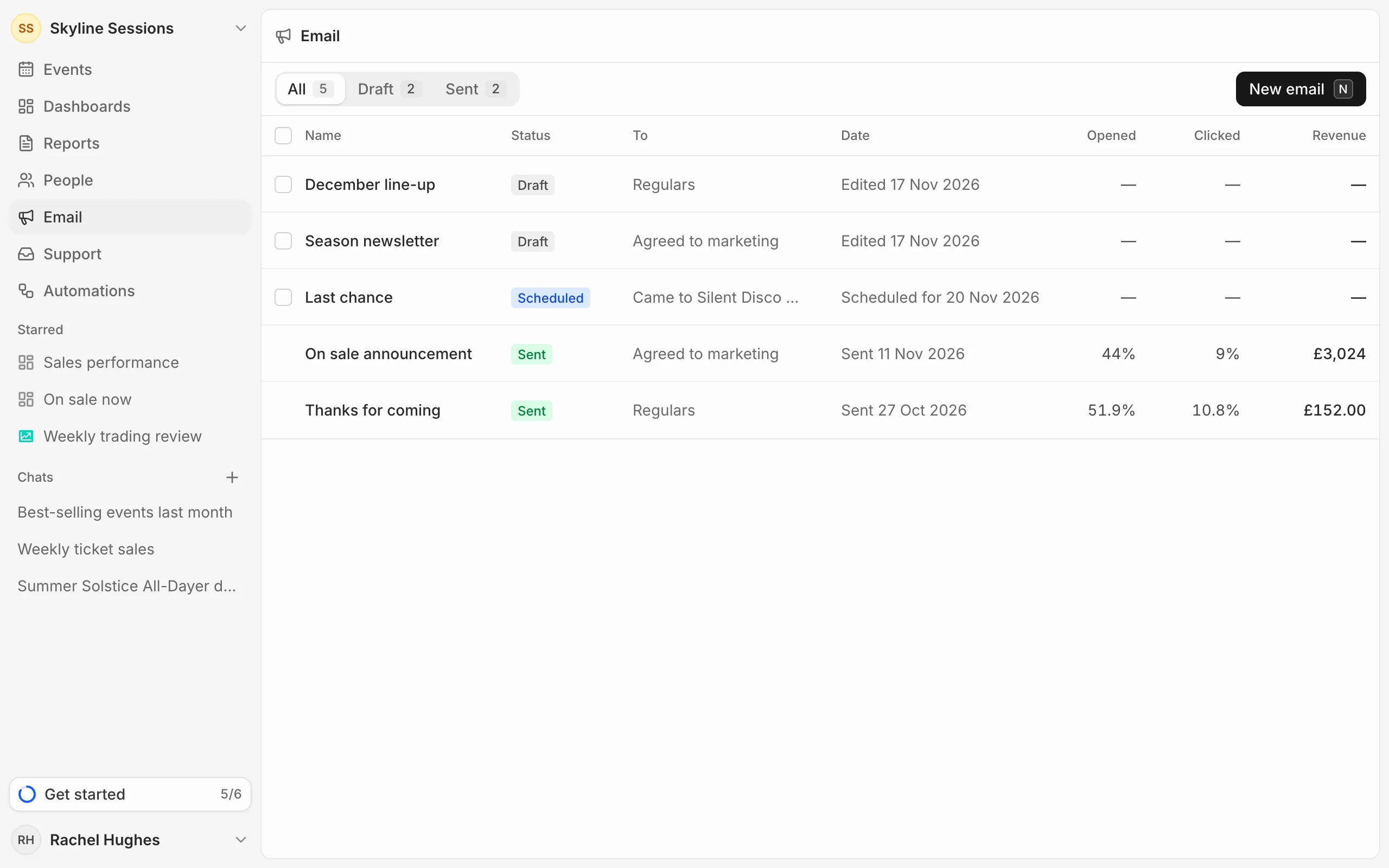
Open Email and press New email. The list shows every campaign with who it went to and how it did; filter it to Draft or Sent.
The editor
The email is in the middle, and you write straight onto it. Blocks to add run down the left. On the right, the Email tab holds its Name, From name, who it goes To, Subject and Preview text, the line inboxes show after the subject.
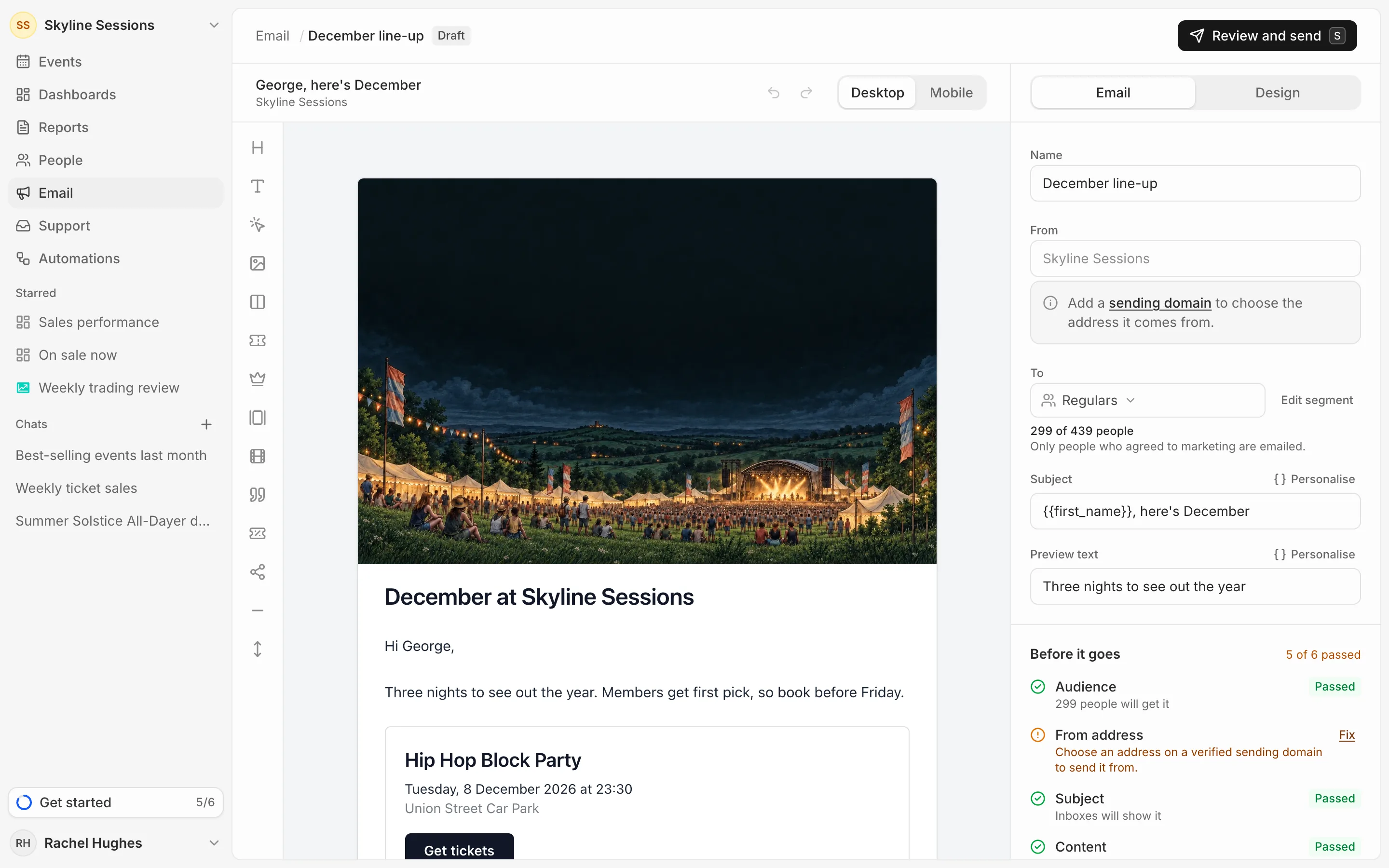
Everything saves as you go. Switch between Desktop and Mobile to see it at each size, and use undo and redo above the email.
Add blocks
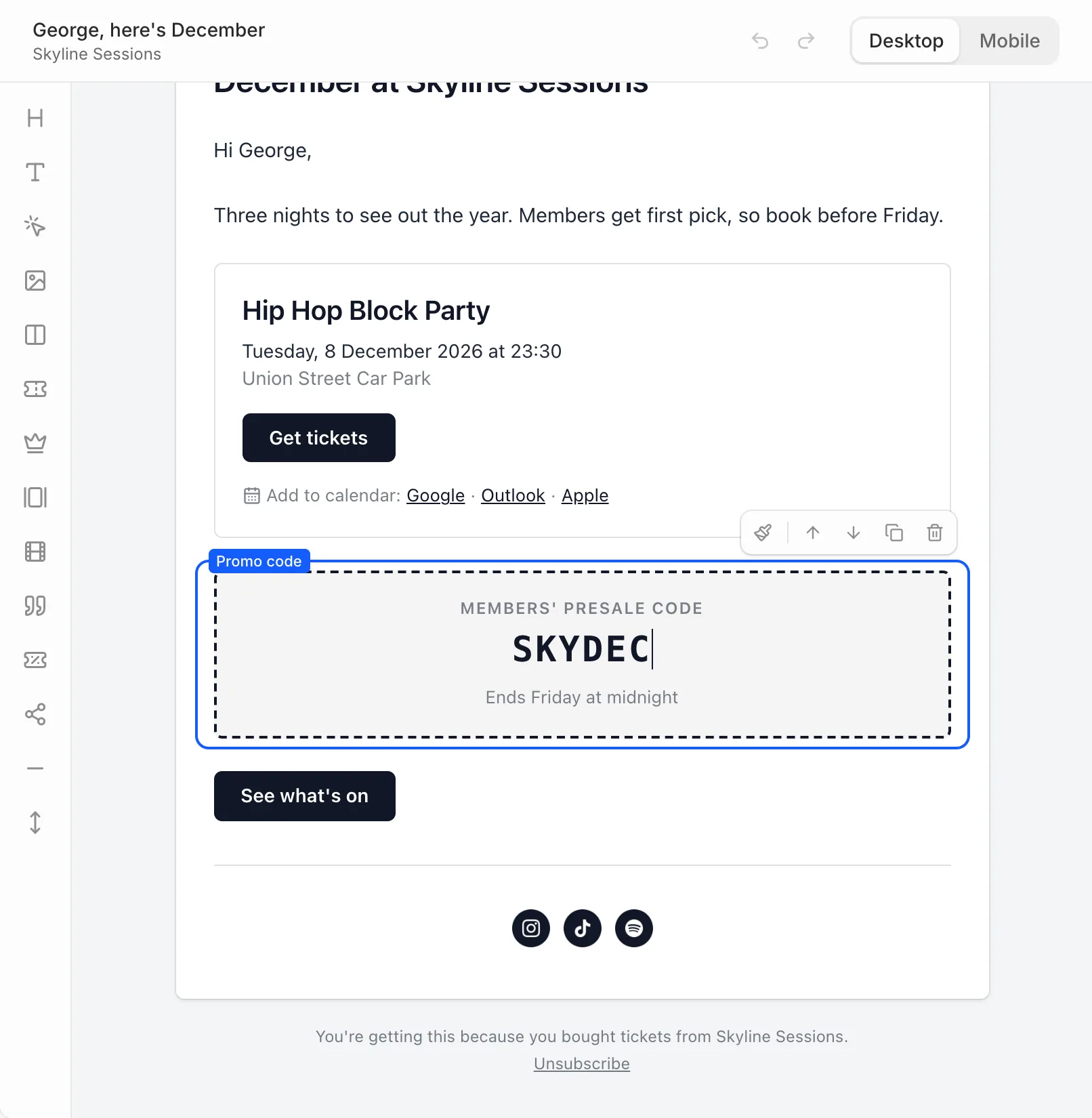
Click a block on the left to add it under the one you have selected, or drag it to where you want it. You can add a heading, text, a button, an image, two columns, an event, a logo, a gallery, a video, a quote, a promo code, social links, a divider and a spacer. Drop a block above the email to put it outside the white sheet, such as a logo.
- Event: press Choose an event to fill in its name, date and venue, with links to add it to a calendar. Add the ticket link yourself.
- Image: upload a JPEG, PNG, GIF or WebP up to 10 MB, or pick one from Your pictures. Use Crop and resize to frame it, and give it a description for people who can’t see it. You can also drop picture files straight onto the email.
- Text: select words to make them bold, italic or a link, or start a bulleted list.
Change a block
Click a block to select it. Its toolbar has the settings for that kind of block, such as alignment or size, then buttons to move it up or down, duplicate it and remove it. Drag a block to move it further.
Change how it looks
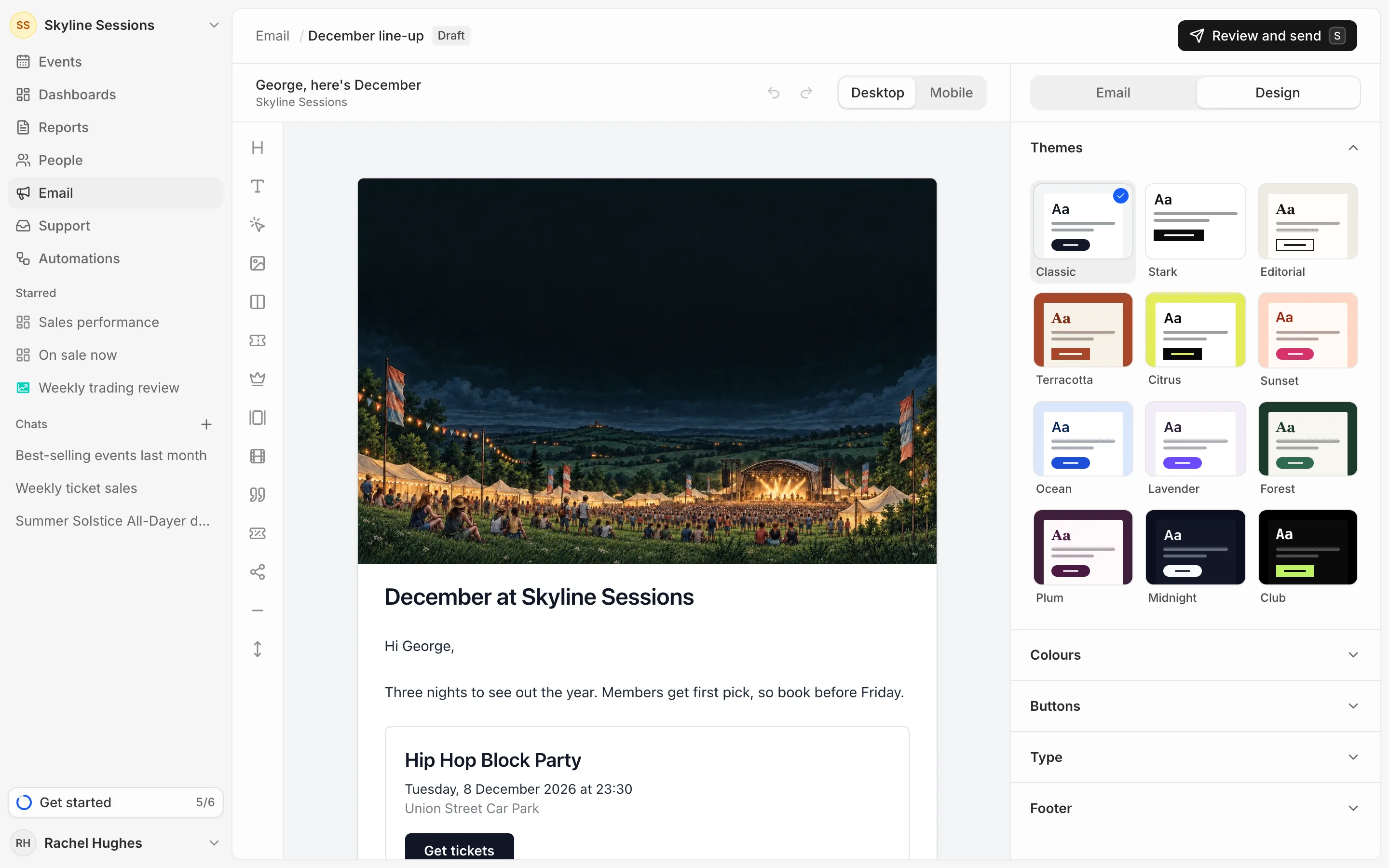
The Design tab sets the whole email’s look. Pick one of the Themes, or set your own Colours, Buttons, fonts under Type and the Footer.
The footer says why people are getting the email and carries the unsubscribe link. You can reword both, and put the footer on the email or below it. The unsubscribe link is always included.