Before it goes
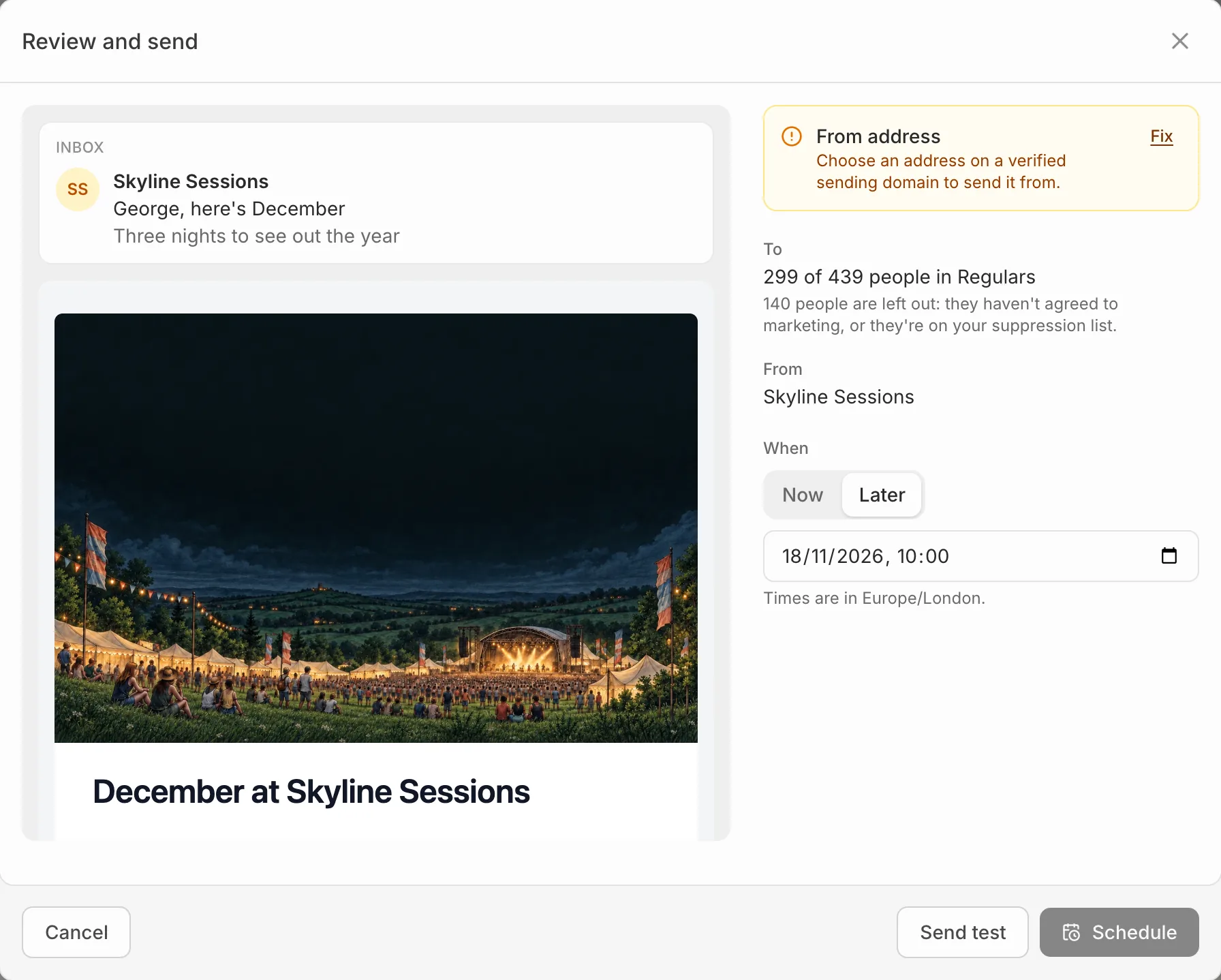
Before it goes, under the editor’s settings, checks the audience, from address, subject, content, links and merge tags as you write. Anything still to do has a Fix link that takes you to it.
Review and send
- Press Review and send. You see the email as it will arrive, who it goes to and how many are left out, and who it’s from.
- Press Send test to send a copy to your own email first.
- Choose Now and press Send now, or choose Later, pick a date and time, and press Schedule.
The test
A test goes only to you, from the address the campaign uses, so it needs a verified sending domain. It fills in your own name, and leaves the last event and your attributes as they’d be for someone without them. Tests don’t count towards your plan’s campaign emails.
Change your mind
Open a scheduled campaign and press Cancel schedule to put it back to a draft. While one is sending, Stop sending stops it reaching anyone it hasn’t reached yet.
Once a campaign is scheduled or sent it can’t be edited.
Your plan's allowance
Each plan sends a number of campaign emails a month. If a campaign would go to more people than you have left, Eventdash tells you before you send, so you can narrow the segment or upgrade.