Disconnect an app
- Open the organisation menu, choose Settings, then Integrations.
- On AI assistants, press Manage.
- Under Connected apps, press Disconnect beside the app.
It loses access straight away. You only see the apps you connected yourself.
Turn AI off
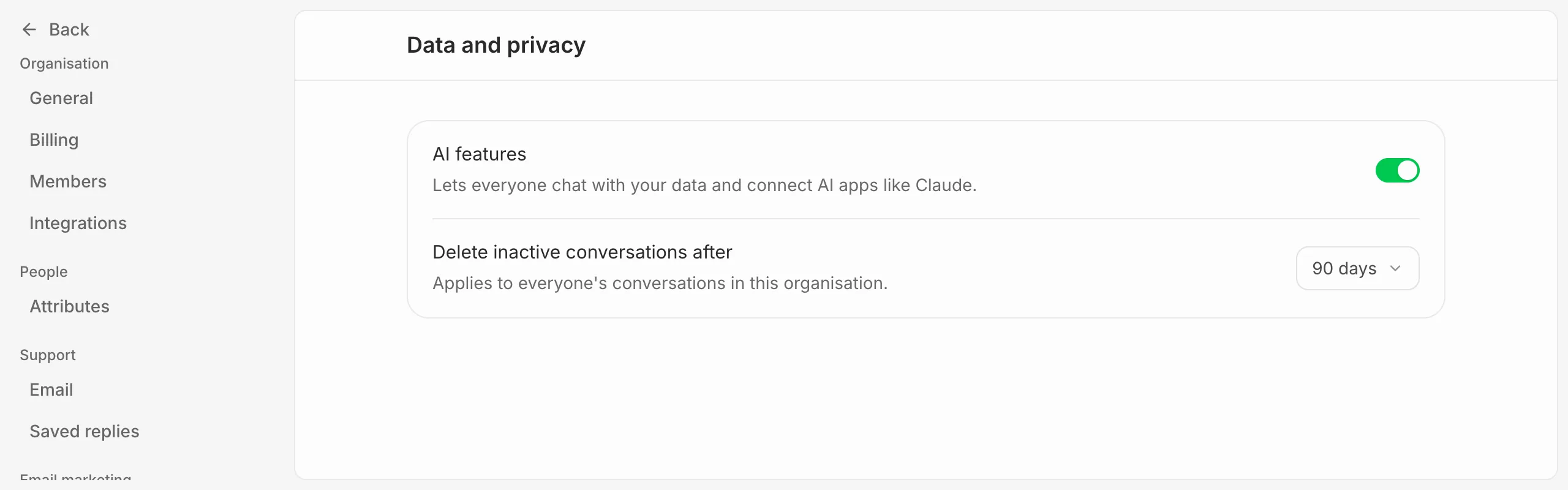
Owners and admins can turn off AI features under Settings, then Data and privacy. Nobody in the organisation can then chat with your data, and connected apps such as Claude stop working. Existing chats are kept.
How long chats are kept
On the same page, Delete inactive conversations after sets how long a chat is kept after it was last used, from 7 days to a year. It’s 90 days unless you change it, and it applies to everyone’s chats in the organisation.
Choosing a shorter time deletes older chats within a day, so Eventdash asks you to confirm first.