Add the connector
- In Claude, open Settings, then Connectors, and choose Add custom connector.
- Name it Eventdash and paste
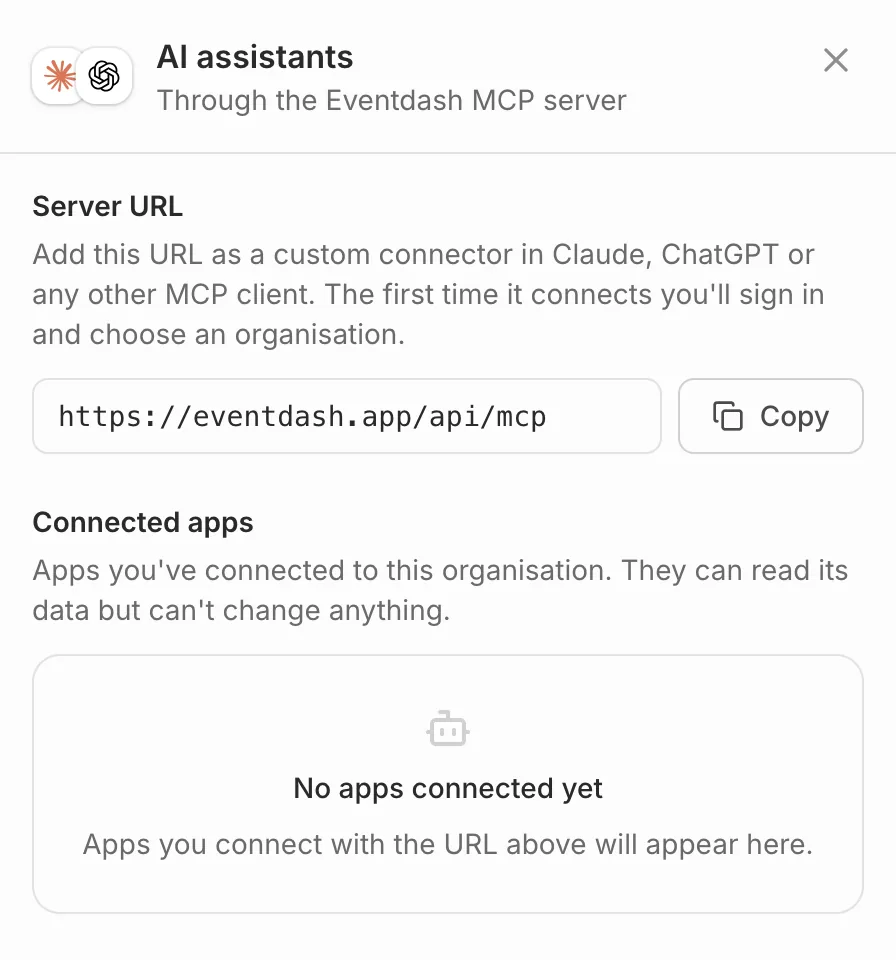
https://eventdash.app/api/mcp. - Claude opens Eventdash. Sign in, pick the organisation Claude can read and press Allow.
You’ll also find the address in Eventdash: open the organisation menu, choose Settings, then Integrations, and press Connect on AI assistants.
On a Claude Team or Enterprise plan, an owner adds the connector for everyone first.
Claude Code
Add the server from your terminal, then run /mcp to sign in:
claude mcp add --transport http eventdash https://eventdash.app/api/mcpWhat Claude can do
Claude can read your organisation’s ticket sales but can’t change anything. Each person connects their own Claude. See Manage AI access to disconnect it.