Set it up
- Open Settings and choose Profile.
- Beside Two-factor, press Set up.
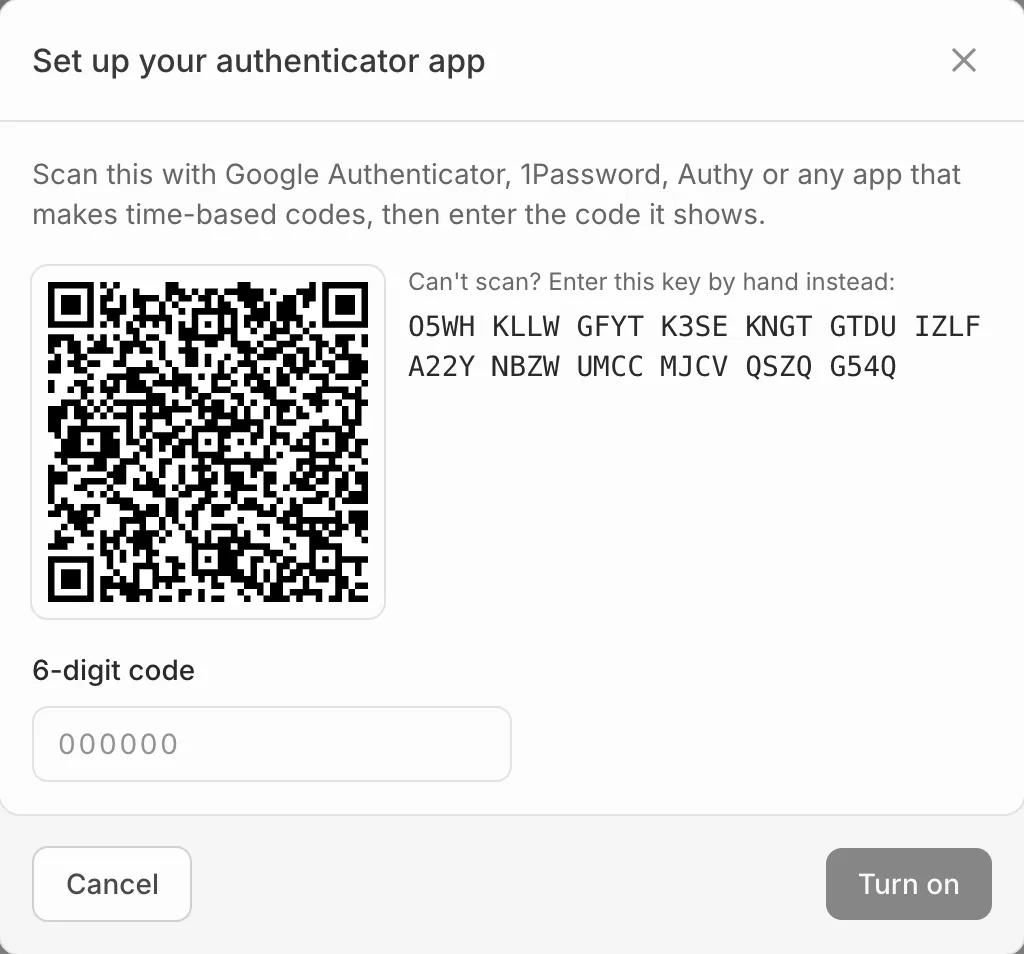
- Scan the QR code with an authenticator app, or type in the setup key.
- Enter the 6-digit code it shows and press Turn on.
Copy or download your backup codes when they’re shown, and keep them somewhere safe: you won’t see them again. Each one signs you in once if you lose your phone.
New backup codes
Beside Backup codes, press Generate new codes. Your old codes stop working, used or not.
Trusted devices
Tick Don’t ask again on this device for 30 days when you sign in to skip the code on that device. Beside Trusted devices, press Forget all devices to ask everywhere again.
Turn it off
Beside Two-factor, press Turn off. It needs a recent sign-in, so if Eventdash asks, sign out, sign back in and try again.